
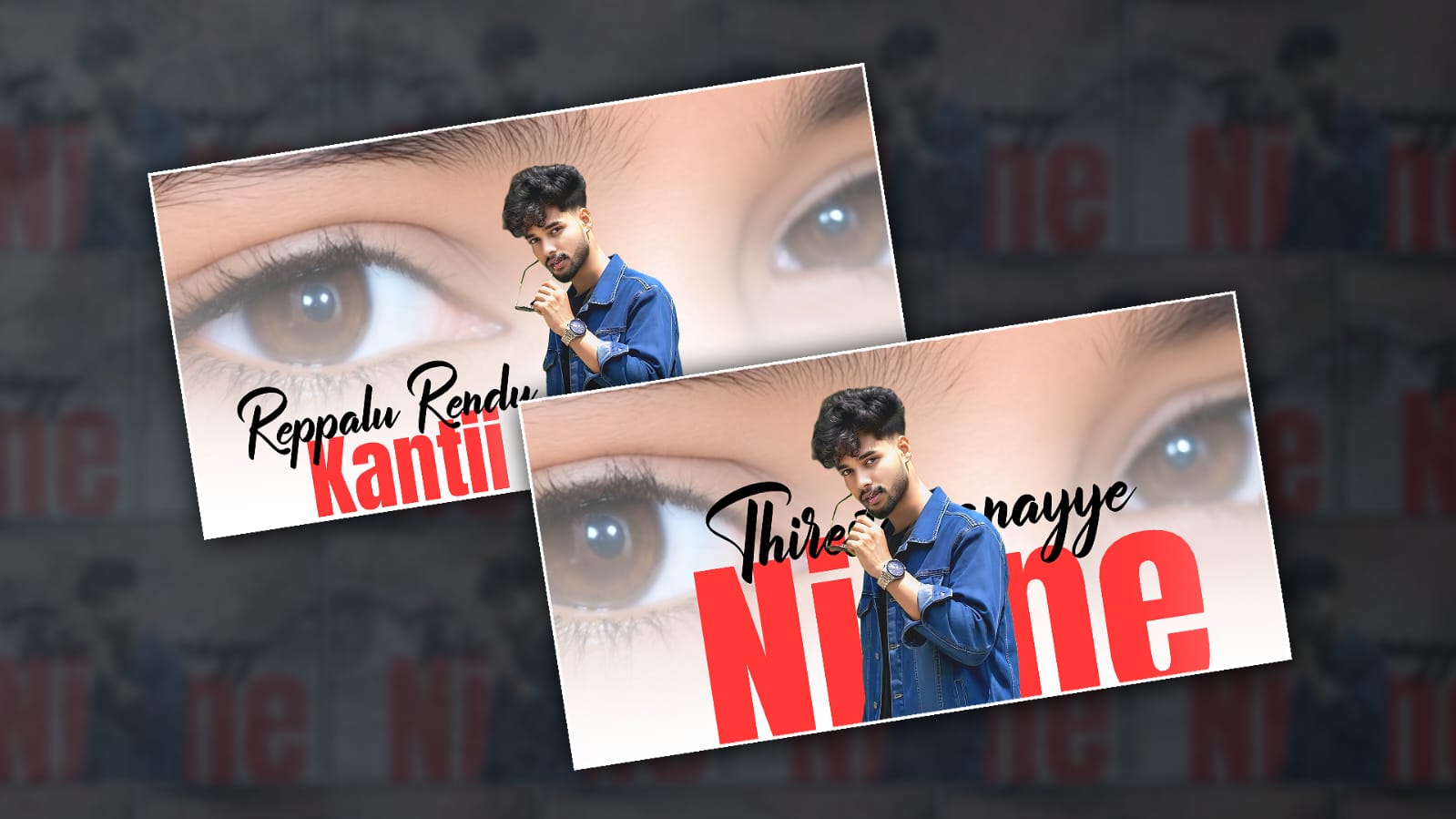
In the age of short-form content, lyrical video editing has become one of the most popular trends on social media platforms like Instagram Reels, YouTube Shorts, and TikTok. These videos combine music, animated lyrics, visual effects, and smooth transitions to create eye-catching content that attracts viewers and increases engagement.
Among the many editing applications available today, Alight Motion stands out as one of the best tools for creating professional-quality lyrical videos directly on a smartphone. Whether you’re a beginner or an experienced editor, Alight Motion offers powerful features that make it easy to create stunning lyrical edits.
In this article, you’ll learn step-by-step how to make trending lyrical video edits in Alight Motion and discover tips that can help your videos stand out from the crowd.
What Is a Lyrical Video Edit?
A lyrical video edit is a video that displays song lyrics with creative animations, effects, transitions, and visual elements synchronised with the music. These edits are commonly used for:
- Instagram Reels
- YouTube Shorts
- TikTok videos
- WhatsApp status videos
- Fan edits
- Romantic and motivational content
The goal is to make the lyrics visually appealing while matching the beat and mood of the song.
Why Use Alight Motion?
Alight Motion has become the favourite editing app for many creators because it offers advanced features that are usually available only in desktop editing software.
Some of its best features include:
- Keyframe animation
- Motion blur effects
- Multiple layers
- Colour correction tools
- Blending modes
- Visual effects
- Custom fonts and graphics
- Export in high quality
These tools allow editors to create professional lyrical videos directly from their mobile devices.
Step 1: Create a New Project
Open Alight Motion and tap the “+” button to create a new project.
Choose the following settings:
- Resolution: 1080p
- Frame Rate: 30 FPS or 60 FPS
- Background: Black, or according to your theme
For Instagram Reels and Shorts, select a vertical ratio of 9:16.
Once your project is created, you’re ready to start editing.
Step 2: Import Your Audio
The song is the heart of any lyrical video.
To add music:
- Tap the Audio option.
- Select the song you want to use.
- Import it into the timeline.
- Listen carefully and identify the beats and lyric timings.
Many editors place markers on important beats to make synchronisation easier.
A perfectly synced lyrical edit always looks more professional and engaging.
Step 3: Add Background Visuals
Trending lyrical videos usually include attractive backgrounds.
You can use:
- Cinematic video clips
- Aesthetic footage
- Nature scenes
- Anime clips
- Dark mood videos
- Blur backgrounds
- Particle effects
Import your chosen background video and place it below all text layers.
If needed, adjust brightness, contrast, and saturation to match the mood of the song.
Step 4: Add Lyrics Text
Now comes the most important part.
Tap:
Add Layer → Text
Type the lyrics according to the song timing.
For better results:
- Use one line at a time.
- Keep text large and readable.
- Place lyrics in the centre or lower third of the screen.
Popular fonts for lyrical edits include:
- Poppins
- Montserrat
- Bebas Neue
- Anton
- Gotham-style fonts
Choose a font that matches the mood of the song.
Step 5: Animate the Lyrics
Static text looks boring. Animation makes lyrics come alive.
Using Keyframes:
- Select the text layer.
- Open Transform.
- Add a keyframe at the beginning.
- Change position, scale, or rotation.
- Add another keyframe later.
Popular text animations include:
Zoom In
Start with small text and gradually increase its size.
Fade In
Animate opacity from 0% to 100%.
Slide Animation
Move text from left, right, top, or bottom.
Bounce Effect
Create a slight scaling movement to match the beat.
Smooth animations help make your lyrical videos look professional.
Step 6: Sync Lyrics with the Beat
Beat synchronisation is what separates average edits from trending edits.
Listen carefully to the music and align:
- Text appearance
- Text movement
- Effects
- Transitions
Every major beat should trigger a visual change.
For example:
- A beat drop can trigger a zoom effect.
- A vocal emphasis can trigger text scaling.
- A drum hit can trigger a flash effect.
When visuals match the music, viewers stay engaged longer.
Step 7: Add Trending Effects
Modern lyrical edits use effects to create energy and movement.
Popular effects in Alight Motion include:
Motion Blur
Motion blur creates smoother animations and gives edits a premium look.
Shake Effect
Used during bass drops and energetic sections.
Glow Effect
Makes text stand out against dark backgrounds.
Blur Transition
Creates smooth scene changes.
RGB Split
Adds a trendy glitch-style look.
Flash Effect
Perfect for strong beats and transitions.
Use effects carefully. Too many effects can make the video look messy.
Step 8: Create Smooth Transitions
Transitions help connect scenes naturally.
Trending transitions include:
- Zoom transition
- Spin transition
- Blur transition
- Swipe transition
- Flash transition
You can create these using keyframes and effects inside Alight Motion.
The smoother the transitions, the more professional your video will appear.
Step 9: Add Particles and Overlays
Many viral lyrical edits use visual overlays to enhance aesthetics.
Examples include:
- Snow particles
- Dust effects
- Light leaks
- Bokeh overlays
- Rain effects
- Sparkles
Place overlays above the background layer and use blending modes such as:
- Screen
- Add
- Lighten
This creates a cinematic atmosphere that viewers love.
Step 10: Colour Grading Colour grading gives your video a unique style.
Popular looks include:
Dark Cinematic
- Lower brightness
- Increase contrast
- Add blue tones
Warm Romantic
- Add orange tones
- Increase saturation slightly
Moody Aesthetic
- Desaturate colors
- Add subtle shadows
Consistency icolouror grading makes your edits look more professional.
Step 11: Export the Video
Once editing is complete:
- Tap Export.
- Choothe se MP4 format.
- Select 1080p resolution.
- Use a high bitrate for better quality.
- Export the video.
Before uploading, watch the entire video to ensure:
- Lyrics are synced correctly.
- No spelling mistakes exist.
- Transitions are smooth.
- Effects look natural.
Tips to Make Your Lyrical Edits Go Viral
If you want your videos to reach more people, keep these tips in mind:
Use Trending Songs
Popular songs often perform better on social media platforms.
Keep Videos Short
Most successful lyrical edits are between 10 and 30 seconds.
Focus on Sync
Perfect synchronisation increases viewer retention.
Use High-Quality Clips
Low-quality footage reduces the overall appeal.
Avoid Overusing Effects
Clean edits often perform better than overloaded edits.
Follow Current Trends
Watch viral reels and shorts regularly to understand what audiences enjoy.
Final Thoughts
Creating trending lyrical video edits in Alight Motion is easier than ever, thanks to its powerful editing features and mobile-friendly interface. By combining well-timed lyrics, smooth animations, beat synchronisation, creative effects, and attractive visuals, you can produce professional-quality videos that capture attention and perform well on social media.
The key to success is practice. Experiment with different effects, transitions, and text styles until you develop your own editing style. With consistency and creativity, you can create lyrical edits that not only look impressive but also have the potential to go viral.
Start editing today, keep learning new techniques, and transform simple song lyrics into visually stunning content that viewers love to watch and share.
