
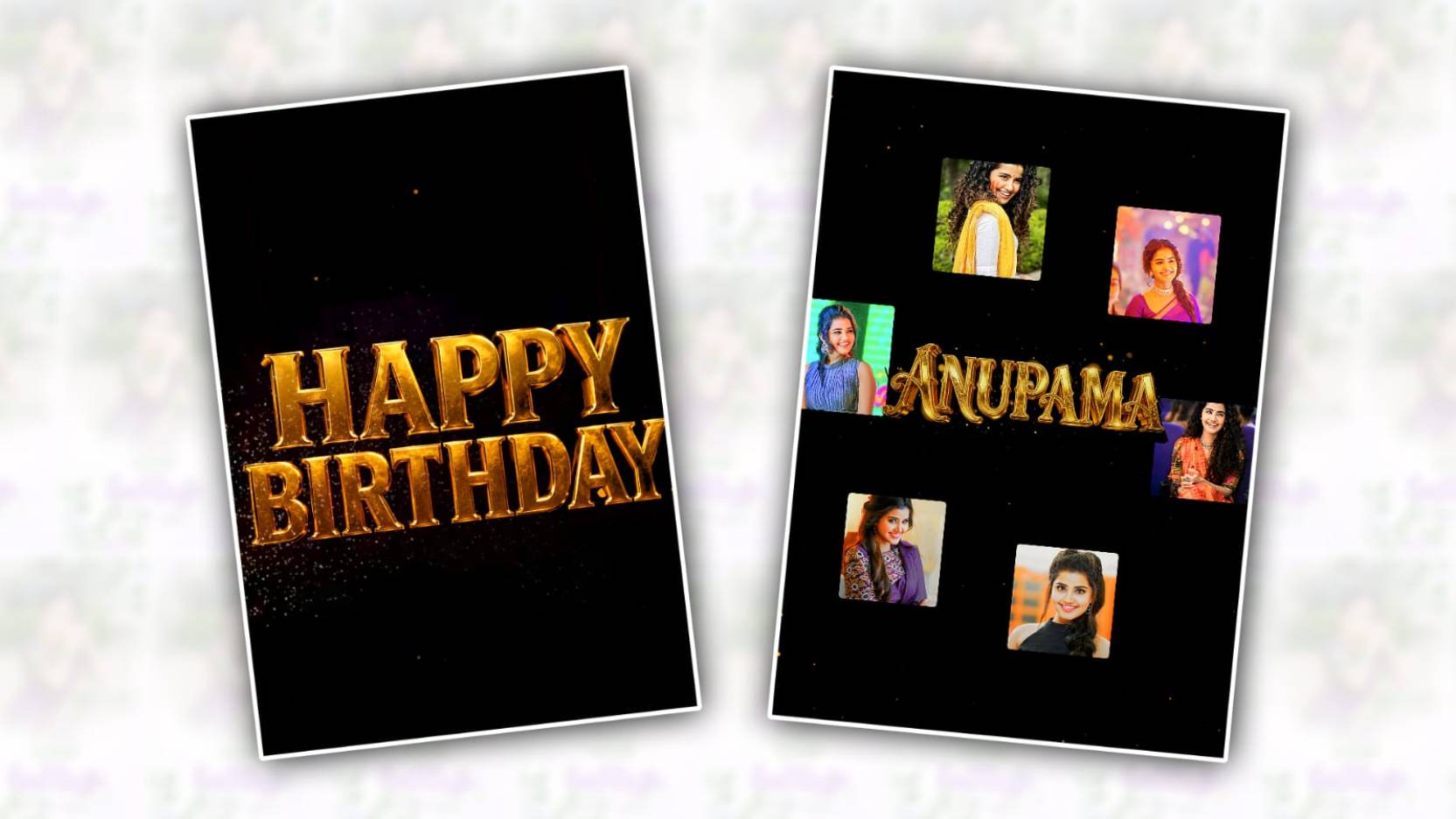
Creating a stunning 3D Golden Text Happy Birthday video in Alight Motion is a great way to make birthday wishes more special and attractive. With the help of Alight Motion’s powerful editing tools, you can create professional-looking birthday videos directly on your smartphone. This guide will walk you through the complete process of editing a beautiful 3D golden text birthday video.
Step 1: Create a New Project
First, open Alight Motion and tap the “+” icon to create a new project. Choose the desired resolution, such as 1080p, and set the frame rate to 30 FPS for smooth animation. Select a background colour or import a birthday-themed background image or video.
Step 2: Add the Birthday Background
Import colourful birthday background featuring balloons, confetti, cakes, or party decorations. You can download free birthday backgrounds from various design websites or create your own. Adjust the background to fit the screen properly and make sure it looks visually appealing.
Step 3: Insert the Happy Birthday Text
Tap “Add Text” and type “Happy Birthday” along with the person’s name if desired. Choose a bold font that works well with 3D effects. Fonts with thick lettering often produce the best results for golden text designs.
Step 4: Create the Golden Effect
To achieve a golden appearance, open the text settings and apply a gold colour or gradient. Use shades of yellow, orange, and gold to create a realistic metallic look. You can further enhance the text by adding glow, shadow, and highlight effects. These adjustments help the text appear shiny and luxurious.
Step 5: Apply 3D Effects
To make the text look three-dimensional, duplicate the text layer several times. Slightly move each duplicated layer behind the main text layer. This creates depth and thickness. You can also use perspective and skew tools to improve the 3D appearance. Adjust the opacity and colour of the shadow layers to make the effect more realistic.
Step 6: Add Animations
Animations bring life to your birthday video. Apply keyframe animations to the text for smooth movement. Popular animation styles include zoom-in, fade-in, rotation, and bounce effects. Set the timing carefully so the text enters the screen smoothly and grabs attention.
Step 7: Add Decorative Elements
Enhance the video by adding birthday stickers, sparkles, particles, balloons, and confetti animations. These elements create a festive atmosphere and make the video more engaging. You can also add transitions between scenes for a professional touch.
Step 8: Include Music
Import a cheerful birthday song or instrumental background music. Adjust the audio levels to ensure the music complements the visuals without overpowering. Synchronising text animations with the music beats can make the video more dynamic.
Step 9: Preview and Export
Before exporting, preview the entire video to check for any mistakes. Make final adjustments to text placement, effects, and timing. Once satisfied, tap the export button and choose high-quality settings such as 1080p resolution for the best results.
Conclusion
Editing a 3D Golden Text Happy Birthday video in Alight Motion is simple when you follow the right steps. By combining golden text effects, 3D depth, smooth animations, decorative elements, and music, you can create an eye-catching birthday video that looks professional and memorable. With practice and creativity, you can design unique birthday greetings that will impress friends, family, and social media audiences.
