
Video editing has become one of the biggest trends on social media. From Instagram Reels to TikTok and YouTube Shorts, everyone loves smooth transitions, beat sync effects, cinematic colour grading, and eye-catching animations. One of the most popular apps used by creators is Alight Motion because it gives professional editing tools directly on your phone.
If you want to create trending edits that look professional and attract more views, this guide will help you step by step. Even if you are a beginner, you can start making viral-style edits using simple techniques.
Why Alight Motion Is So Popular
Many creators use Alight Motion because it is easy to use and powerful at the same time. The app supports:
- Smooth keyframe animation
- Beat sync editing
- Motion blur effects
- Velocity edits
- Color correction
- Green screen effects
- Text animations
- Multiple layers
Unlike basic editing apps, Alight Motion gives more creative freedom. That’s why most trending editors on social media prefer it.
Step 1: Choose a Trending Audio
The first thing that makes a video trend is the music. Trending audio helps your video get more reach because people already engage with that sound.
Before editing:
- Search trending Reels or TikTok videos
- Save popular audios
- Pick energetic songs for fast edits
- Use emotional music for cinematic edits
Try to select audio with clear beats because beat drops make transitions look more satisfying.
Step 2: Collect High-Quality Clips
Your edit quality depends heavily on the clips you use. Blurry or low-quality footage reduces the professional look.
You can use:
- Your own videos
- Anime clips
- Movie scenes
- Gaming footage
- Cinematic stock videos
Always use HD or 4K clips if possible. High-quality footage makes effects look cleaner and sharper.
Step 3: Create a New Project
Open Alight Motion and create a new project.
Choose:
- Aspect Ratio: 9:16 for Reels and Shorts
- Resolution: 1080p
- Frame Rate: 30 FPS or 60 FPS
Most trending editors prefer 60 FPS because it makes motion smoother.
After creating the project, import your audio first and then add clips according to the beats.
Step 4: Learn Beat Sync Editing
Beat sync is one of the most important editing skills. It means changing clips exactly when the music beat hits.
To do this:
- Play the song
- Listen carefully to the beat drops
- Add markers on beats
- Cut clips at those points
When transitions match the music rhythm, the video feels more satisfying to watch.
Many viral edits become popular simply because of perfect beat synchronisation.
Step 5: Use Smooth Transitions
Transitions make your edits look professional. Instead of simple cuts, use motion-based transitions.
Popular transitions include:
- Zoom transition
- Spin transition
- Blur transition
- Shake transition
- Flash transition
Do not overuse transitions. Too many effects can make the edit messy. Clean and smooth editing usually performs better.
Step 6: Add Keyframe Animations
Keyframes are the heart of Alight Motion editing. They allow you to animate movement, zoom, rotation, and effects.
For example:
- Zoom in during beat drops
- Move clips sideways
- Rotate text smoothly
- Create cinematic camera movement
The more you practice keyframes, the better your edits become.
Most trending edits use smooth zoom-ins and zoom-outs because they create energy in the video.
Step 7: Use Motion Blur
Motion blur is one of the secret tricks behind professional edits. It makes movement smoother and more realistic.
Without motion blur:
- Transitions may look choppy
- Fast movements feel rough
With motion blur:
- Edits look cinematic
- Animations become smoother
- Velocity effects look better
You can enable motion blur from effects settings inside the app.
Step 8: Try Velocity Editing
Velocity editing is currently one of the biggest trends on Instagram and TikTok.
This technique changes video speed dynamically:
- Slow motion before beat drop
- Fast movement during transition
- Smooth speed ramps
Velocity edits look stylish and dramatic. They are commonly used in:
- Anime edits
- Football edits
- Car edits
- Cinematic reels
The key is smooth speed changes, not random speed effects.
Step 9: Improve Colours with Colour Grading. Colour grading gives your edit a professional mood and style.
Popular editing styles include:
- Dark cinematic tone
- Warm orange look
- High contrast edits
- Blue aesthetic vibe
Use effects carefully:
- Brightness
- Contrast
- Saturation
- Sharpen
- Glow
Do not over-edcoloursors. Naturalcinemacolours usually look more attractive.
Step 10: Add Trending Effects
Effects help your video stand out, but balance is important.
Popular trending effects:
- RGB split
- Glow effect
- Blur effect
- Shake effect
- VHS effect
- Film grain
You can also import presets from other creators. Many editors share free presets online.
However, don’t depend only on presets. Learning manual editing helps you create unique content.
Step 11: Use Stylish Text Animations
Text can make your videos more engaging.
You can add:
- Song lyrics
- Quotes
- Motivational text
- Character names
- Cinematic subtitles
Use clean fonts and smooth animations. Avoid too many font styles in one edit.
Simple white text with smooth motion often looks more professional than flashy designs.
Step 12: Export in High Quality
After editing:
- Check all transitions
- Watch the full video
- Fix laggy frames
- Adjust audio timing
Export settings:
- 1080p resolution
- High bitrate
- 60 FPS if supported
High-quality exports improve viewer experience and help videos perform better on social platforms.
Tips to Make Your Edits Go Viral
Creating a trending edit is not only about effects. You also need a smart content strategy.
Follow Trends Quickly
Trending audios and styles change fast. Try to upload edits while trends are still popular.
Keep Videos Short
Short edits usually perform better:
- 10–30 seconds works well
- Fast-paced editing keeps viewers watching
Create Strong Hooks
The first 2 seconds matter the most. Start with:
- Fast transitions
- Powerful visuals
- Beat drops
If viewers stay longer, social media platforms push your content more.
Post Consistently
Most successful editors upload regularly. Consistency improves both editing skills and audience growth.
Common Mistakes Beginners Make
Overusing Effects
Too many effects make edits confusing. Clean edits usually look more professional.
Poor Beat Sync
Even good transitions look bad if they don’t match the music.
Low-Quality Clips
Always use HD clips for better results.
Copying Others Completely
Take inspiration from creators, but develop your own style over time.
Best Types of Trending Edits in 2026
Currently, these editing styles are trending:
- Anime edits
- Cinematic travel edits
- Football velocity edits
- Car cinematic reels
- Sad emotional edits
- Dark aesthetic edits
- Beat sync transition edits
You can experiment with different styles and discover which matches your creativity.
Final Thoughts
Learning how to make trending video edits in Alight Motion takes practice, patience, and creativity. At first, editing may feel difficult, but once you understand beat sync, keyframes, transitions, and motion blur, your videos will start looking professional.
The best way to improve is by editing consistently and trying new styles. Watch trending creators, learn techniques, and slowly build your own editing identity.
Remember, viral edits are not always the most complicated ones. Sometimes simple, clean, and emotional edits connect more with viewers than heavy effects. Focus on smoothness, timing, and creativity — and your edits can stand out on social media.
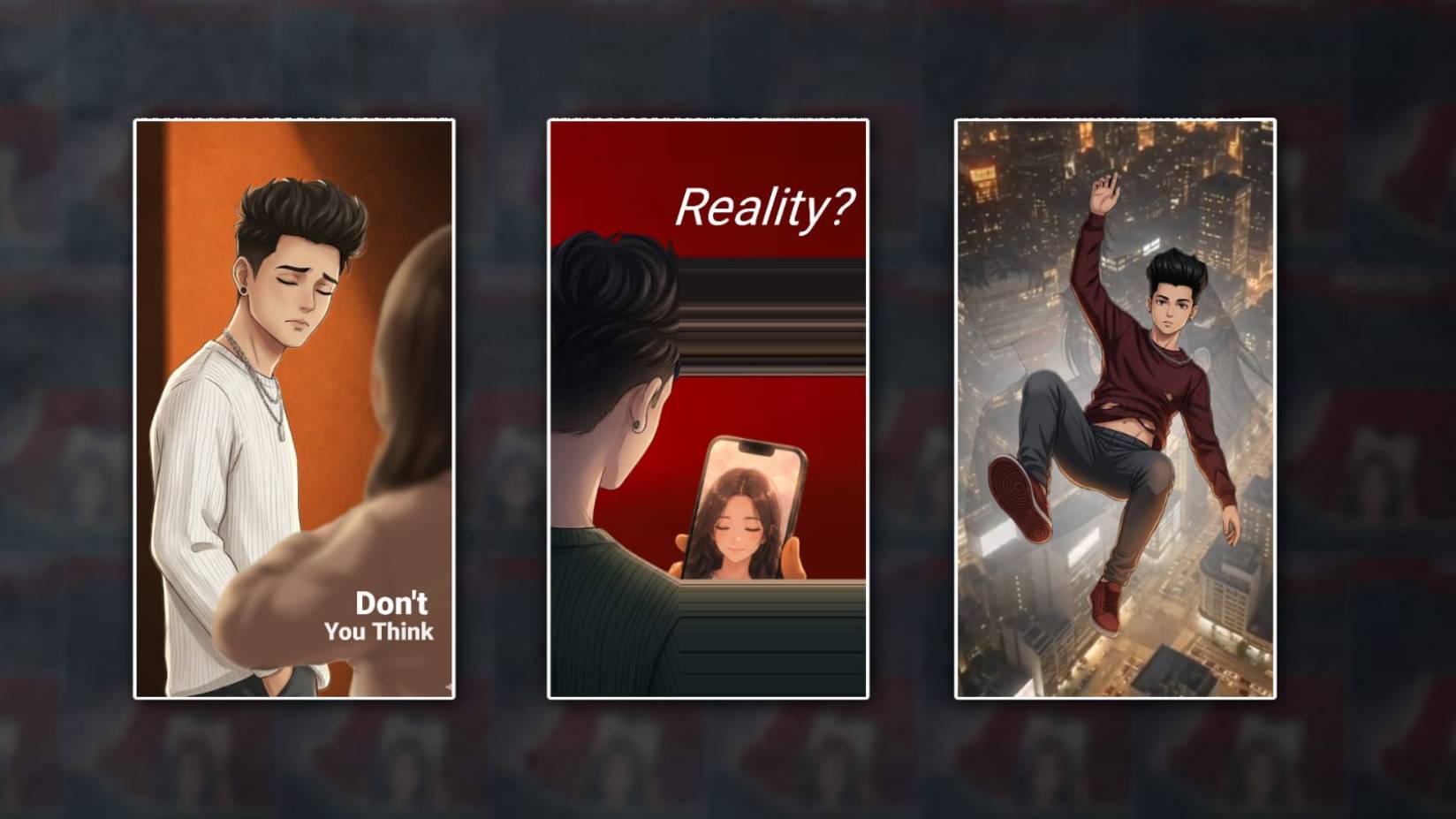
Prompt 1
An uploaded image of a soft anime-style illustration of a young man with messy dark hair wearing the same dress, eyes closed in a sad expression, facing another blurred person in the foreground. Warm beige background, cinematic lighting, clean line art, smooth shading, semi-realistic anime aesthetic, portrait composition, emotional and friendly atmosphere.” pose change.
Prompt 2
A cinematic anime-style scene of a young boy in the same dress holding a smartphone at night, viewed from behind over his shoulder. On the phone screen, upload a girl image anime-style, which is a soft pastel portrait of a beautiful girl with long dark hair and closed eyes. The atmosphere is emotional and dreamy, with a warm glow lighting from the phone illuminating the boy’s hand and background. Upload an image with the same background as Day.
Prompt 3
” Anploaded image creates an Anime-style illustration of a boy floating/falling at night, same dress with part of the stomach, same dress, red sneakers. Dynamic pose with one hand raised and one leg bent toward the viewer. Soft glowing city lights and motion blur in the background, warm orange and golden lighting, dreamy urban atmosphere, smooth shading, detailed anime face, black same hair, aesthetic vibe, depth of field, high contrast, digital art, vertical composition, ultra-detailed.”
