
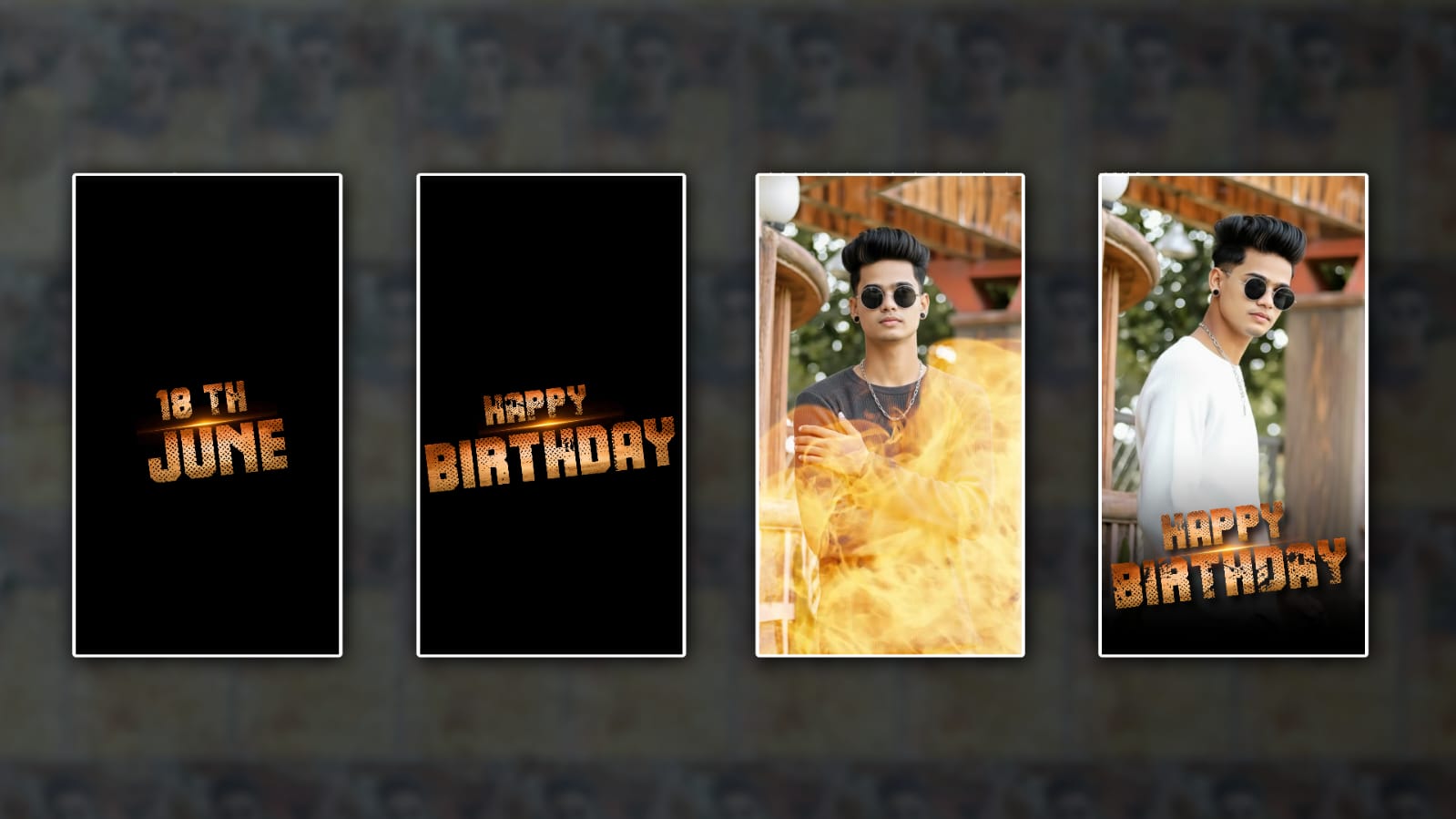
Birthdays are special moments that deserve to be celebrated memorably. One of the best ways to make a birthday extra special is by creating a personalised birthday video. If you’re looking to create an eye-catching boys’ birthday video, Alight Motion is one of the most powerful mobile editing apps available. It offers professional animation tools, visual effects, transitions, and text customisation features that can help you design an amazing birthday video right from your smartphone. In this guide, you’ll learn how to make a boy’s birthday video in Alight Motion step by step, even if you’re a beginner.
Why Use Alight Motion for Birthday Videos?
Alight Motion has become popular among content creators because it combines professional editing tools with an easy-to-use interface. Whether you’re creating a birthday video for your son, brother, friend, or nephew, the app lets you add stylish effects, animated text, music, and photos to make it look professional. Some key features include:
- Multiple layers for photos, videos, and text
- Smooth transitions and animations
- Motion graphics and visual effects
- Colour correction tools
- Easy export options in HD quality
These features make it an excellent choice for creating birthday edits that stand out.
Step 1: Gather Your Materials
Before opening Alight Motion, collect everything you need for the project.
Prepare:
- Birthday photos of the boy
- Short video clips, if available
- Birthday-themed PNG images
- Background music
- Name and age details
- Special messages from family or friends
Organising your files beforehand will make the editing process faster and smoother.
Step 2: Create a New Project
Open Alight Motion and tap the “+” button to create a new project.
Choose the settings:
- Resolution: 1080p
- Frame Rate: 30 FPS
- Background Colour: Black or any preferred colour
- Aspect Ratio:
- 16:9 for YouTube
- 9:16 for Instagram Reels and TikTok
- 1:1 for Instagram posts
After selecting your settings, tap “Create Project.”
Step 3: Add Birthday Photos
Now it’s time to add the photos.
Tap the “+” icon and select “Image & Video.” Import your chosen birthday photos into the timeline.
Arrange the images in the order you want them to appear. You can showcase:
- Baby photos
- Childhood memories
- School pictures
- Recent photos
- Special family moments
Keep each image visible for about 3 to 5 seconds for a smooth viewing experience.
Step 4: Add a Birthday Background
. A colourful background can make your birthday video more attractive.
You can use:
- Blue-themed backgrounds
- Superhero designs
- Sports-themed graphics
- Gaming-inspired backgrounds
- Balloon and cake designs
Place the background layer beneath the photos so it remains visible throughout the video.
Step 5: Add Animated Text
Text is one of the most important parts of a birthday video.
Add messages such as:
- Happy Birthday
- Wishing You Joy and Success
- Happy 10th Birthday, Alex
- Have a Wonderful Day
To animate text:
- Tap the text layer.
- Select “Move & Transform.”
- Add keyframes.
- Create smooth entrance and exit animations.
You can also use fade, zoom, bounce, or slide effects to make the text more engaging.
Choose bold fonts that match the birthday theme. Brigcoloursors like blue, gold, red, or white often work well for boys’ birthday videos.
Step 6: Apply Transitions Between Photos
Transitions create smooth movement from one image to another.
Popular transition styles include:
- Zoom Transition
- Fade Transition
- Slide Transition
- Spin Transition
- Flash Effect
To create transitions:
- Select the photo layer.
- Add keyframes.
- Scale or move the image slightly.
- Match the animation with the next photo.
Smooth transitions make the video feel professional and visually appealing.
Step 7: Add Effects for a Stylish Look
Alight Motion offers many built-in effects to enhance your project.
Popular birthday video effects include:
- Glow
- Shake
- Motion Blur
- Particle Effects
- Light Leaks
- Sparkle Effects
Apply effects carefully to avoid making the video look cluttered. A few well-placed effects often create a cleaner and more professional result.
Step 8: Add Birthday Music
Music brings life to any birthday video.
Choose a cheerful song or instrumental track that matches the mood. You can also use birthday-themed music or the recipient’s favourite song if copyright restrictions are not an issue.
To add music:
- Tap the “+” icon.
- Select “Audio.”
- Import your music file.
- Align the music with the photos and animations.
Try syncing transitions and text animations with the beat of the music for a more dynamic presentation.
Step 9: Include Special Birthday Wishes
A personal message can make the video more meaningful.
You can add text slides,s such as:
“May your life be filled with happiness, success, and unforgettable adventures. Happy Birthday!”
Or create multiple slides featuring wishes from family members and friends.
This personal touch often becomes the most memorable part of the video.
Step 10: Add Final Touches
Before exporting, review your project carefully.
Check for:
- Spelling mistakes
- Smooth transitions
- Proper timing
- Audio synchronization
- Photo quality
You can also add:
- Birthday stickers
- Confetti animations
- Firework effects
- Name reveal animations
- Ending thank-you screen
These small details help elevate the overall quality of the video.
Step 11: Export the Video
Once you’re satisfied with the result:
- Tap the Export button.
- Select the MP4 format.
- Choose 1080p resolution.
- Set a high bitrate for better quality.
- Export the video.
Depending on your project’s complexity, rendering may take a few minutes.
After exporting, watch the video once more to ensure everything looks perfect.
Tips for Creating an Attractive Boy’s Birthday Video
Here are some extra tips to make your birthday edit stand out:
- Use high-quality photos.
- Keep animations smooth and simple.
- Match the effects with the music beat.
- Avoid excessive transitions.
- Use a consistent colour theme.
- Highlight the birthday boy’s best moments.
- Include personal messages from loved ones.
Remember, a meaningful video is often more memorable than one overloaded with effects.
Conclusion
Creating a boy’s birthday video in Alight Motion is easier than many people think. With the right photos, music, animations, and effects, you can produce a professional-looking birthday video directly from your smartphone. By following the steps above, you’ll be able to design a memorable birthday tribute that captures special moments and brings a smile to the birthday boy’s face.
Whether you’re making a simple slideshow or a cinematic birthday edit, Alight Motion gives you all the tools you need to create a stunning and personalised birthday video. Take your time, experiment with different effects, and most importantly, have fun creating something special that will be cherished for years to come.
