
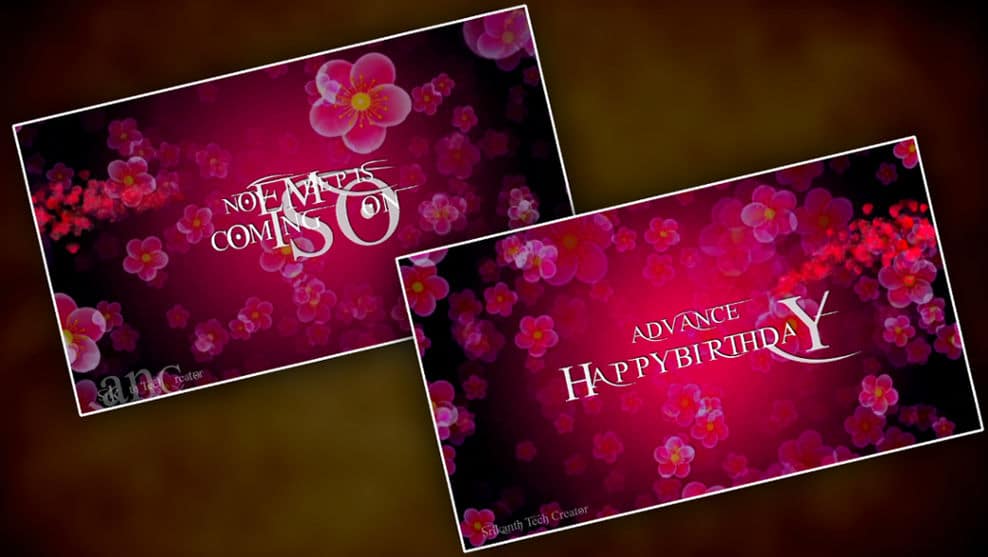
Creating a beautiful birthday-wishes video in Alight Motion is a fun and creative way to surprise your loved ones. With the right steps, even beginners can produce professional-looking videos. In this tutorial, you’ll learn how to edit a stunning birthday video step by step.
First, open Alight Motion and create a new project. Choose the aspect ratio depending on where you want to share the video. For Instagram or WhatsApp, a 9:16 ratio works best, while 16:9 is suitable for YouTube. Set the resolution to high quality (1080p) and select a smooth frame rate like 30fps.
Next, import your media. Tap on the “+” icon and add photos or video clips of the birthday person. Try to choose clear and meaningful pictures to make the video more emotional and engaging. Arrange them on the timeline in the order you want them to appear.
Now it’s time to add background music. Tap on “Audio” and select a birthday song or any soft, emotional track. Music plays a huge role in setting the mood of your video, so pick something that matches the vibe you want—happy, emotional, or fun.
After adding music, start applying transitions between clips. Smooth transitions such as fade-in, fade-out, zoom, or slide effects make your video look more professional. To do this, tap between two clips and choose a transition effect. Adjust the duration to keep it natural and not too fast.
Then, add text to your video. Click on “Text” and type birthday wishes such as “Happy Birthday,” “Wishing You Happiness,” or a personalized message. Choose stylish fonts, adjust colors, and animate the text using effects like fade, pop-up, or typing animation. Position the text properly so it doesn’t block important parts of the image.
To enhance the visuals, use effects and colour adjustments. You can apply filters, brightness, contrast, and saturation to make your clips more vibrant. Alight Motion also offers advanced effects like glow, blur, and shake that can add a cinematic feel to your video.
Don’t forget to use keyframes for smooth animations. Keyframes help you control movement, scale, and rotation over time. For example, you can slowly zoom into a photo or move text across the screen. This adds a dynamic and professional touch to your video.
You can also add overlays like light leaks, bokeh effects, or particles to make the video more visually appealing. These elements give your video a dreamy and festive look, perfect for birthday edits.
Once everything is done, preview your video carefully. Check if the transitions, text timing, and music sync are smooth. Make any necessary adjustments.
Finally, export your video. Tap on the export button, choose high quality (1080p), and save it to your device. Now your beautiful birthday wishes video is ready to share with your friends, family, or on social media.
With practice and creativity, you can create even more impressive edits. Keep experimenting with different styles, effects, and music to make each birthday video unique and memorable.
